WANT TO UPGRADE ANDROID VERSION? - GO FOR CUSTOM ROMS!
These days you find some applications
that deny to run on your android phone due to your lower android version. And
if you bought an android phone it’s your right to get updates from the Company.
Well it’s not true as many of us do not get any such Official Updates.
So
if you find an interesting application that is not installing on your phone
with the error “This application requires latest Android Version” then you
shouldn’t feel hopeless in this era of technology. If Company isn’t providing
you update from Android 4.4 or lower to upper versions, you can go for Custom Roms.
What
are Custom Roms
Custom Roms are usually created by
the developers that are not from your mobile phone company. They do so as they
find bugs in the phone, less features or they want to bring update for your
mobile phone considering it necessity of the current time. After making Custom
Roms they upload these files on the forums where users of that specific mobile
phone of which the custom rom is created, can install the Rom in their phones.
Be sure that Custom Roms created for one specific model cannot be installed on
the other.
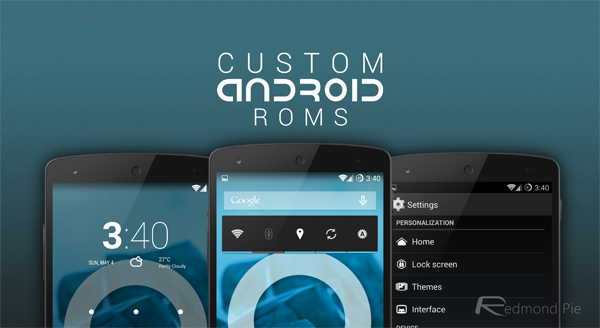
Ref:
http://cdn.redmondpie.com/wp-content/uploads/2014/05/Custom-Android-ROMs.png
Cyanogenmod is one of the best community when
talked about Custom Roms as they are providing latest android version Custom
Roms of many mobile models.
Cyanogenmod
is available at http://www.cyanogenmod.org
How
to find Custom Rom for your phone
For finding Custom Rom for your device, I will suggest
you xda-developer forum as the guys there are really working hard to bring
latest and superb Custom Roms. Currently I am also using cm11 for Nokia x2
which I got from there. You can search against your mobile model in the forum.
Moreover, they will provide you the procedure to safely install the rom.
Xda-developer is available at http://www.xda-developers.com
How
to install
And the main part is here, how to
install these exotic things.
1. Rooting
the phone
The
very first part to begin is rooting your phone. You can do this by Advanced
Tools of your device. Just like I am using Advanced Nokia x2 tools as I am
Nokia x2 user. You can find them easily by googling as it is almost impossible
for a device of not having these tools. Once you have found the software,
install it and connect your phone with PC and follow simple procedure to root
your phone. These softwares are different for different Companies’ mobiles so
they cannot be rooted in same way, but you can easily google how to root your
phone.
2. Installing
Flash Recovery
Next step is to install
the mobile software that will install the rom for you. Most famous flash
recoveries include TWRP and CWM. Most probably they will be present in your
mobile phone advanced tools as described before where these can be installed
after rooting the phone. If that is not the case, you can google it against
your model to install these recoveries.
There
are also many other flash recoveries but a proper selection always need
attention. Stable one among these two (TWRP and CWM) is TWRP. But it usually
produces errors while flashing rom like “this package is not for your mobile”.
If you feel that the rom zip file you are going to flash is stable and it will
not cause any problem, then you should definitely install it. For this CWM is
better option that most probably cause much less restrictions as compared to
TWRP. Remember, only one flash recovery will be present on your phone.
Installing the other will delete the previous recovery so don’t bother to find
it.
3. Downloading
custom rom
You can find and
download the custom roms from the forums like xda-developers etc. It will be a
zip file, place it in your sd card. It is important to note that you should
have an sd card as we will wipe the whole internal memory while flashing custom
rom, so if you don’t have sd card then you should wait for your mobile phone’s
Official Update.
4. Getting
Started- Moving to recovery Mode
Once you have done
previous steps, now it is the time to upgrade your phone. Go and search how you
can go to recovery mode of your phone. In most of cases, it is done by pressing
power and volume up button simultaneously. After finding how to move towards
recovery mode, switch off your cell phone and go to recovery mode.
5. Backing
up data
Even
if you get a stable custom rom from a forum still you should backup all
internal memory data to you sd-card. TWRP and CWM both have options to backup
your whole data to sd-card. Make this step sure because this is the most
important step in the whole process. If you will skip this step and due to hard
luck, if you will not be able to flash rom, your phone will turn into dead body
with no OS installed and re-installing the OS is not that much easy.
6. Factory
reset, wipe data, cache and dalvik cache
After making a backup
of your internal memory, there are four things to delete the whole internal
memory available to users:
- Factory Reset
- Wipe Data
- Wipe Cache
- Wipe Dalvik Cache
All
these four options are available in the recovery mode.
7. Flashing
custom rom zip file
Then you can install the custom rom
from the zip file present in the sd-card. For this, select the “install from
the sd-card” option present in recovery mode and find your custom rom zip file.
Install it and it will most probably no error will pop up.
You can also install
GApps in addition to custom rom but you can still use your phone without them.
8. Reboot
phone
If you will follow all
these steps you can easily install custom rom. Now reboot your phone with the
option “Reboot to system”.
Congratulations! Enjoy your new
Android Version with a lot of amazing other features.
Finally
So you just have installed a custom
rom. You can use it as much as you want and can go back to your previous phone
OS if you had the backup saved up somewhere. Enjoy these roms and you can
contact the developers anytime at the forum they are always there to help you.
Cheers!
Comments
Post a Comment